- Shopify Tutorial for Beginners: From Idea to Launch
- Step 1: Signing Up and Initial Configuration
- Step 2: Choosing the Right Theme for Your Brand
- Step 3: Adding and Organizing Your Products
- A Deeper Dive: The Shopify Tutorial for Beginners Must-Knows
- Setting Up Payment Gateways
- Configuring Shipping and Tax Settings
- Customizing Your Key Store Pages
- Step 4: Final Checks and Launching Your Store
- Ready to Build a Professional E-commerce Presence?
Shopify Tutorial for Beginners: From Idea to Launch
This Shopify tutorial for beginners is your direct path to launching a successful online store. In an era where global e-commerce sales are projected to exceed $8 trillion by 2026, choosing the right platform is not just an option—it’s a critical business decision. Shopify stands out as a dominant force, powering millions of businesses with its intuitive interface and powerful features. Forget the technical overwhelm; we’re breaking down the essential steps to get your store operational, optimized, and ready for customers.
Step 1: Signing Up and Initial Configuration
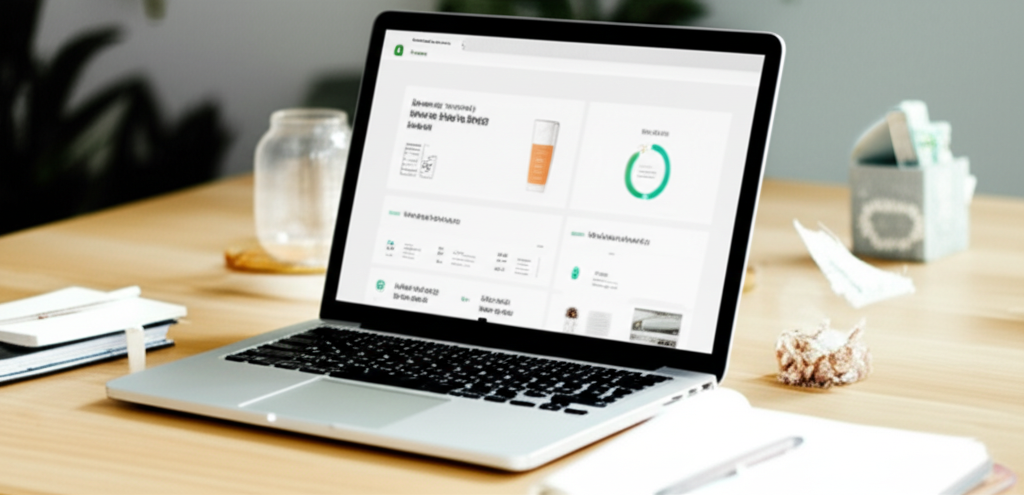
Your journey begins at the Shopify homepage. The signup process is straightforward, requiring just an email address, a password, and your desired store name.
A crucial point: your initial store name will create your default Shopify URL (e.g., `yourstorename.myshopify.com`). Don’t overthink this, as you will connect a professional custom domain (e.g., `yourstorename.com`) later. This `myshopify` address is primarily for your internal use.
Once inside, Shopify will ask a few questions about your business stage and industry. These answers help tailor the dashboard experience, so answer them as accurately as possible. After this brief setup, you’ll land on your main Shopify admin dashboard—your new command center.
Step 2: Choosing the Right Theme for Your Brand
Your theme is the digital storefront of your business; it dictates the look, feel, and user experience. Shopify offers a mix of free and premium themes in its official Shopify Theme Store.
Free Themes: Developed by Shopify, these are excellent starting points. They are well-coded, mobile-responsive, and fully supported. For a new business, a free theme like Dawn or Sense is often more than enough to create a professional look.
Premium Themes: These paid themes offer more advanced features, greater customization options, and unique designs. They are a worthy investment if you have a specific functional or aesthetic need that free themes don’t cover.
When selecting a theme, look beyond the aesthetics. Prioritize mobile-first design, fast loading speeds, and an intuitive navigation structure. A beautiful store that confuses customers or loads slowly will cost you sales. While customizing a theme can be straightforward, achieving a truly unique and high-converting design often requires a professional touch. A bespoke web design can elevate your brand and optimize the customer journey from the start.
Step 3: Adding and Organizing Your Products
This is where your business comes to life. From your dashboard, navigate to Products > Add product. You’ll be presented with several key fields:
Title: Make it clear and descriptive. Include keywords customers might use to find your item.
Description: This is your sales pitch. Go beyond listing features; explain the benefits. Use bullet points and bold text to make it scannable. Tell a story about the product.
Media: High-quality images and videos are non-negotiable. Showcase your product from multiple angles, in use, and highlight key details.
Pricing: Set your price and use the “Compare-at price” field to show a sale.
Inventory: Assign a Stock Keeping Unit (SKU) for tracking and manage inventory levels to prevent overselling.
Shipping: Enter the product’s weight to enable calculated shipping rates later.
Once you have several products, organize them into Collections. These are groups of products, like “New Arrivals,” “Summer Collection,” or “Best Sellers.” Collections make it easier for customers to browse your store and find what they’re looking for.
A Deeper Dive: The Shopify Tutorial for Beginners Must-Knows
With products loaded, it’s time to configure the operational backbone of your store. These are the details that build trust and ensure a smooth transaction process for your customers.
Setting Up Payment Gateways
You can’t sell anything if you can’t accept money. Shopify makes this incredibly simple with its built-in processor, Shopify Payments. Activating it allows you to accept all major credit cards instantly. The primary benefits include competitive processing rates and seamless integration with your store’s analytics and payout schedule.
Navigate to Settings > Payments to configure your options. In addition to Shopify Payments, you can easily activate third-party gateways like PayPal, Amazon Pay, or Klarna to offer customers more ways to pay. Offering familiar and trusted payment options can significantly increase your conversion rate.
Configuring Shipping and Tax Settings
Shipping can be one of the most complex parts of e-commerce. In Settings > Shipping and delivery, you’ll create shipping profiles and zones.
Shipping Zones: These are the geographical regions you ship to (e.g., your country, specific states, or international regions).
Shipping Rates: For each zone, you can set different rates. These can be flat rates (e.g., $5 standard shipping), free shipping over a certain order value, or carrier-calculated rates that pull real-time quotes from carriers like USPS or DHL.
For taxes, go to Settings > Taxes and duties. Shopify can help automate tax collection based on your location and the customer’s location. However, sales tax laws are complex and vary widely. It is always best practice to consult with a tax professional to ensure you are fully compliant.
Customizing Your Key Store Pages
A credible online store is more than just a homepage and product pages. You need to build trust by providing clear information about your business. Navigate to Online Store > Pages to create these essential pages:
About Us: Tell your brand’s story. Who are you? What is your mission?
Contact Us: Provide multiple ways for customers to get in touch (form, email, phone).
FAQ: Proactively answer common questions about products, shipping, and returns.
Policy Pages: Shopify has handy templates for your Privacy Policy, Refund Policy, and Terms of Service. Find these in Settings > Policies. Customize them to fit your business model. These pages are crucial for transparency and legal protection.
Step 4: Final Checks and Launching Your Store
Before you go live, run through this pre-launch checklist:
1. Place a Test Order: Use Shopify’s Bogus Gateway to simulate a transaction from start to finish. Ensure the checkout process is smooth and order notifications work correctly.
2. Review Settings: Double-check your shipping rates, tax settings, and payment gateway configuration.
3. Proofread Everything: Read every page, product description, and policy for typos and grammatical errors.
4. Check Mobile View: A majority of online traffic is mobile. Preview your store on a smartphone to ensure it looks and functions perfectly.
5. Connect Your Custom Domain: Purchase a domain from a registrar like GoDaddy or Namecheap and follow Shopify’s simple instructions in Settings > Domains to connect it. This replaces the `.myshopify.com` URL with your professional `yourbrand.com` address.
Once you’re confident everything is perfect, go to Online Store > Preferences, scroll down to the “Password protection” section, and disable it.
Congratulations, your Shopify store is now live and open for business!
Ready to Build a Professional E-commerce Presence?
Following this tutorial gives you a powerful foundation for your online business. The Shopify platform provides all the tools you need to get started and grow. However, launching your store is just the beginning. The next steps involve marketing, search engine optimization, and continuous refinement to turn visitors into loyal customers.
If you want to accelerate your growth and ensure your store is built not just to function, but to convert, professional guidance can be invaluable. A strategic approach to design, user experience, and technical SEO can make the difference between a hobby store and a thriving e-commerce enterprise. To explore how expert strategy can shape your online success, you can consult our team here.